Registration instructions
Please read the following instructions prior to registering in Local Content Reporting System (hereafter referred to as LC RS).
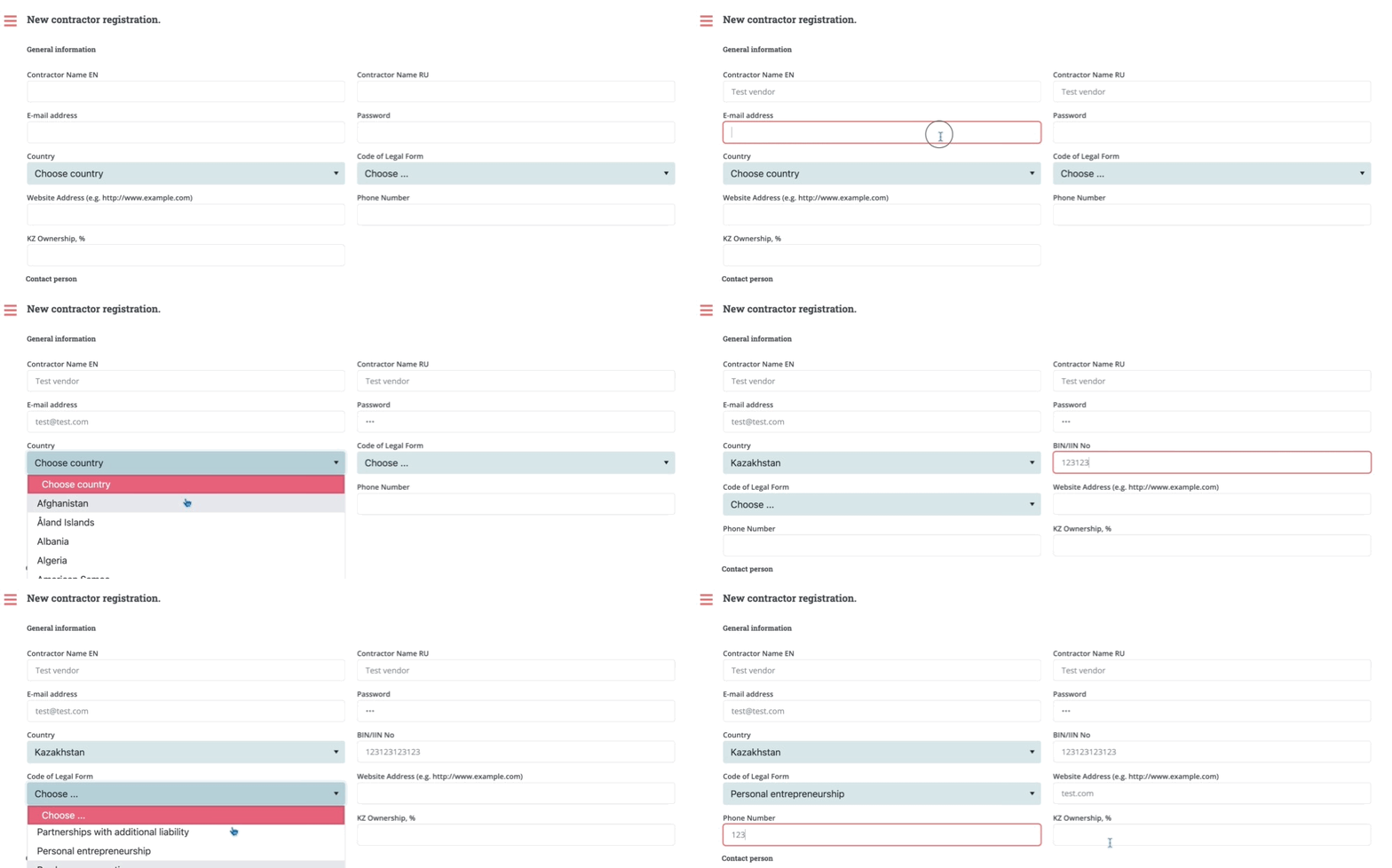
In ‘General information’ area, Vendor needs to fill the following required fields:
1) Email address* – the email should be set up for the Legal Entity and should not belong to an individual. Vendor will further use this email to login to LC RS and receive system email notifications.
2) Password* - it is required to set-up password considering the following rules:
- Passwords must be at least 8 characters;
- Passwords must have at least one digit ('0'-'9');
- Passwords must have at least one uppercase ('A'-'Z').
3) Country code* - select from the list the country where Vendor is registered.
4) BIN/IIN No* - Kazakhstan based Vendors need to indicate their Legal Entity’s BIN or IIN Number.
5) Code of legal form* - select from the list.
6) Website Address – indicate Vendor’s website address. This is not a required field.
7) Phone number*– indicate work phone number that Subsoil users can use in order to contact the Vendor.
8) KZ Ownership, % - indicate the percentage of KZ ownership as indicated in official documents.
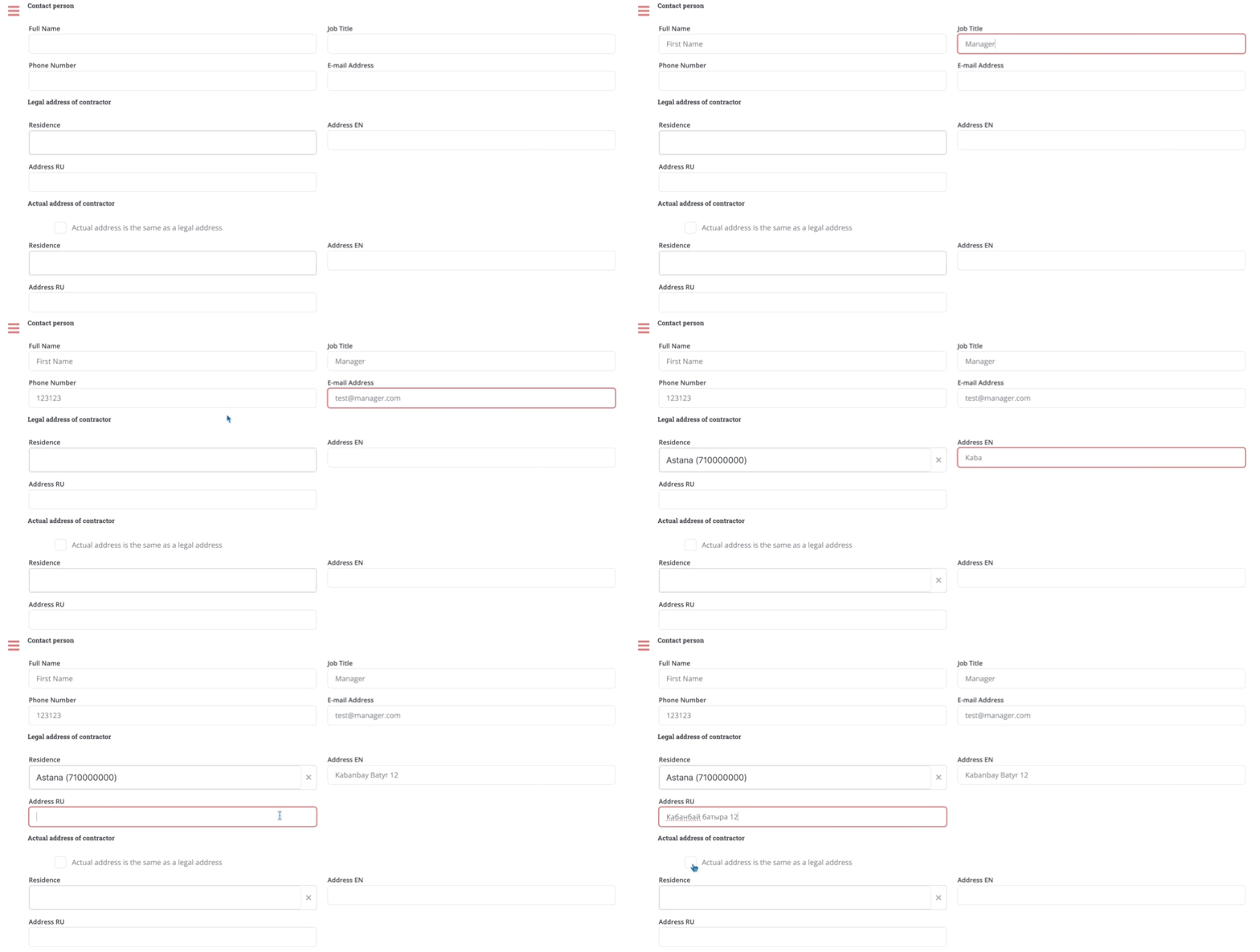
In ‘Contact person’ area, it is required to fill out the following information:
1) Name* - The name of person who will be responsible for preparing and entering local content reports
2) Job title* - Person’s official job title
3) Phone Number* - Mobile or work phone number that can be used in order to reach the person
4) E-mail address* - Person’s work or personal email address that can be used to reach the person
In ‘Legal address of Vendor’ and ‘Actual address of Vendor’ areas, Vendor should indicate the legal and actual addresses.
If legal address is the same as the actual address, Vendor can check the ‘Actual address is the same as a legal address’ checkbox to duplicate the legal address information to actual address field.
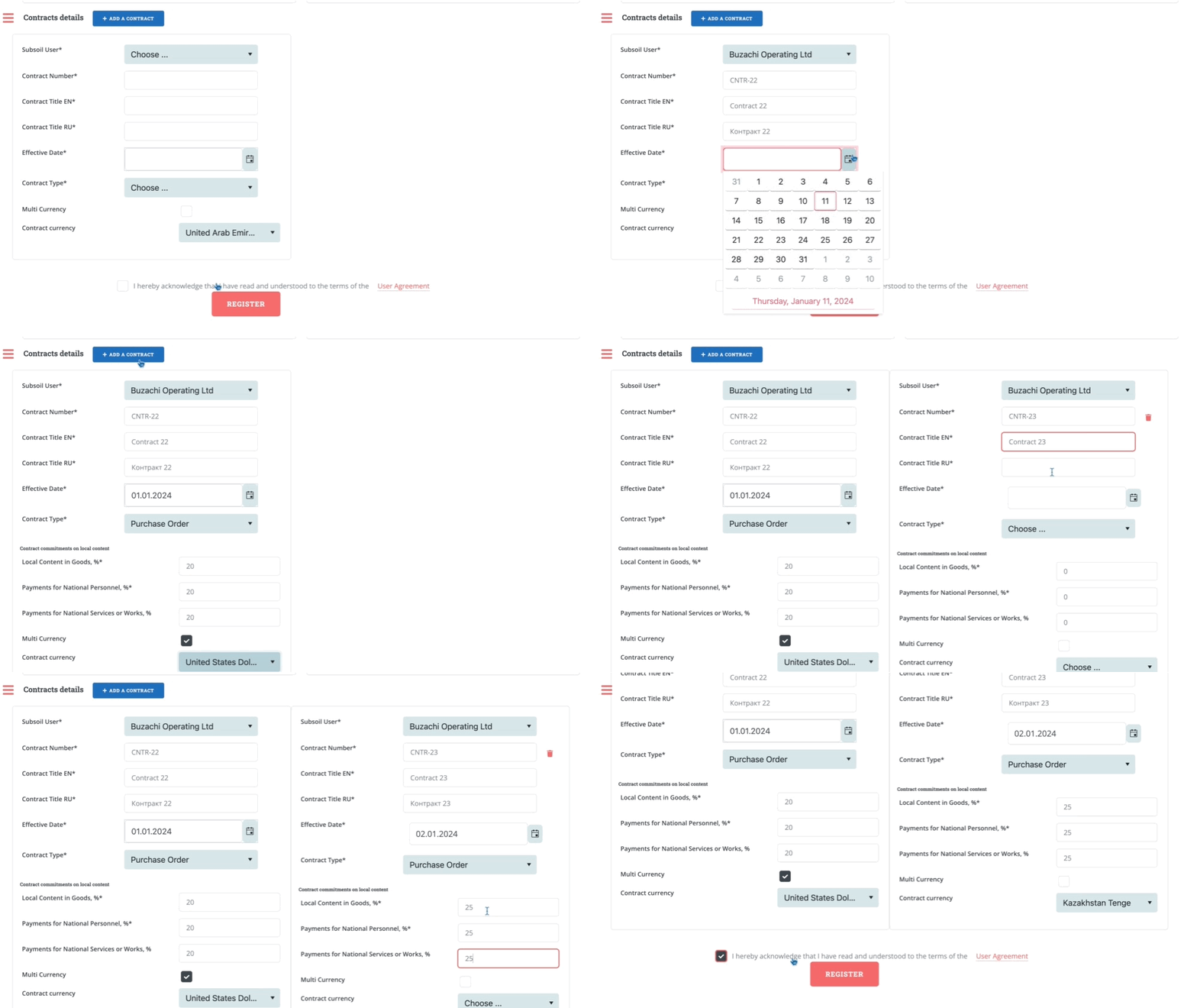
In ‘Contracts details’ area, Vendor needs to indicate all active contracts and/or purchase orders per which reports will be submitted:
1) Subsoil User* - Choose one of registered Subsoil Users which the contract belongs to;
2) Contract Number* - Add the contract number or purchase order number as it is indicated in official documents;
3) Effective date* - the date when contract/purchase order was activated;
4) Contract type* - Vendor needs to select the type of contract depending on which company signed the contract;
- a. Purchase order – if Vendor will be reporting reports per purchase order with LC obligations, Vendor should select this type.
6) To complete registration, check the user agreement form.
7) Click on ‘Register’ button.
8) The System will send a link to your email to activate your account. Activate the account and login to the System.
Note: Vendor can submit reports only after its profile is activated and Subsoil user has checked the profile. Vendor will be notified via email when Subsoil User checks the profile.